
Setting Product Variations in the Store
What You’ll Achieve by the End of This Guide: By following this step-by-step guide, you will get to know how to set product variations in the Store.
Benefits of Setting the Product Variations in Your Store:
- Customization and Personalization: Customers can choose the version that best suits their needs, preferences, and style. This enhances the shopping experience and increases customer satisfaction.
- Wider Range of Choices: A larger selection of options attracts more customers and encourages them to spend more.
- Better Fit and Function: Variations in size, color, material, or features ensure that customers can find products that fit them perfectly and meet their specific needs.
- Enhanced User Experience: A well-organized product page with clear variations makes it easier for customers to navigate and find what they're looking for.
Steps to Add the Product Variations Block
Locate the Product Variations Block:
- Tap the add New block button to display the block types available.

Tip: If your product item has different attributes such as color and size, you may add a product variations block for your client's comfort.

- Choose the Product variations block.

Tip: Don’t forget to tap the Save changes button.
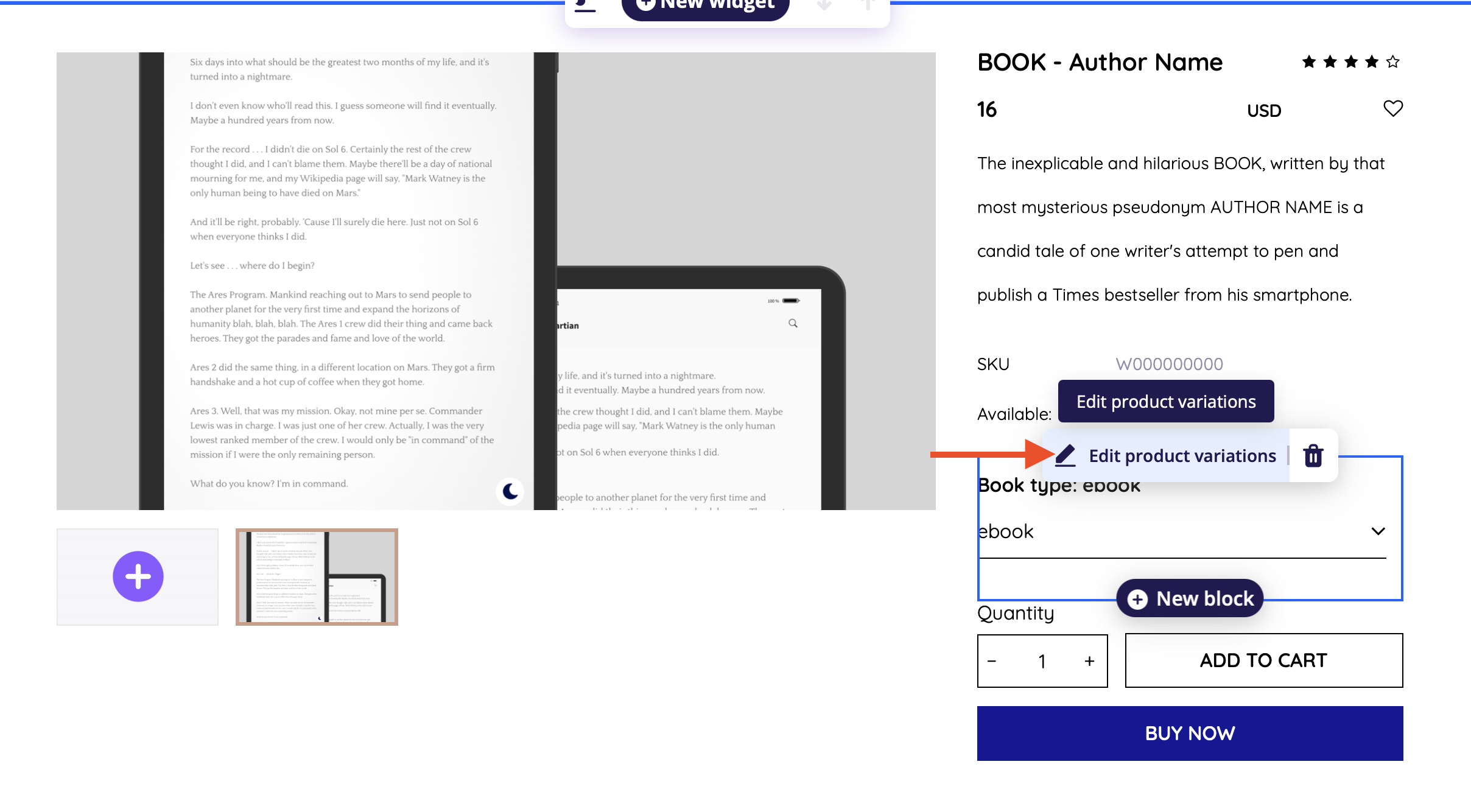
Hover over the Variations dropdown menu and click on Edit Product Variations to begin customizing your product options.
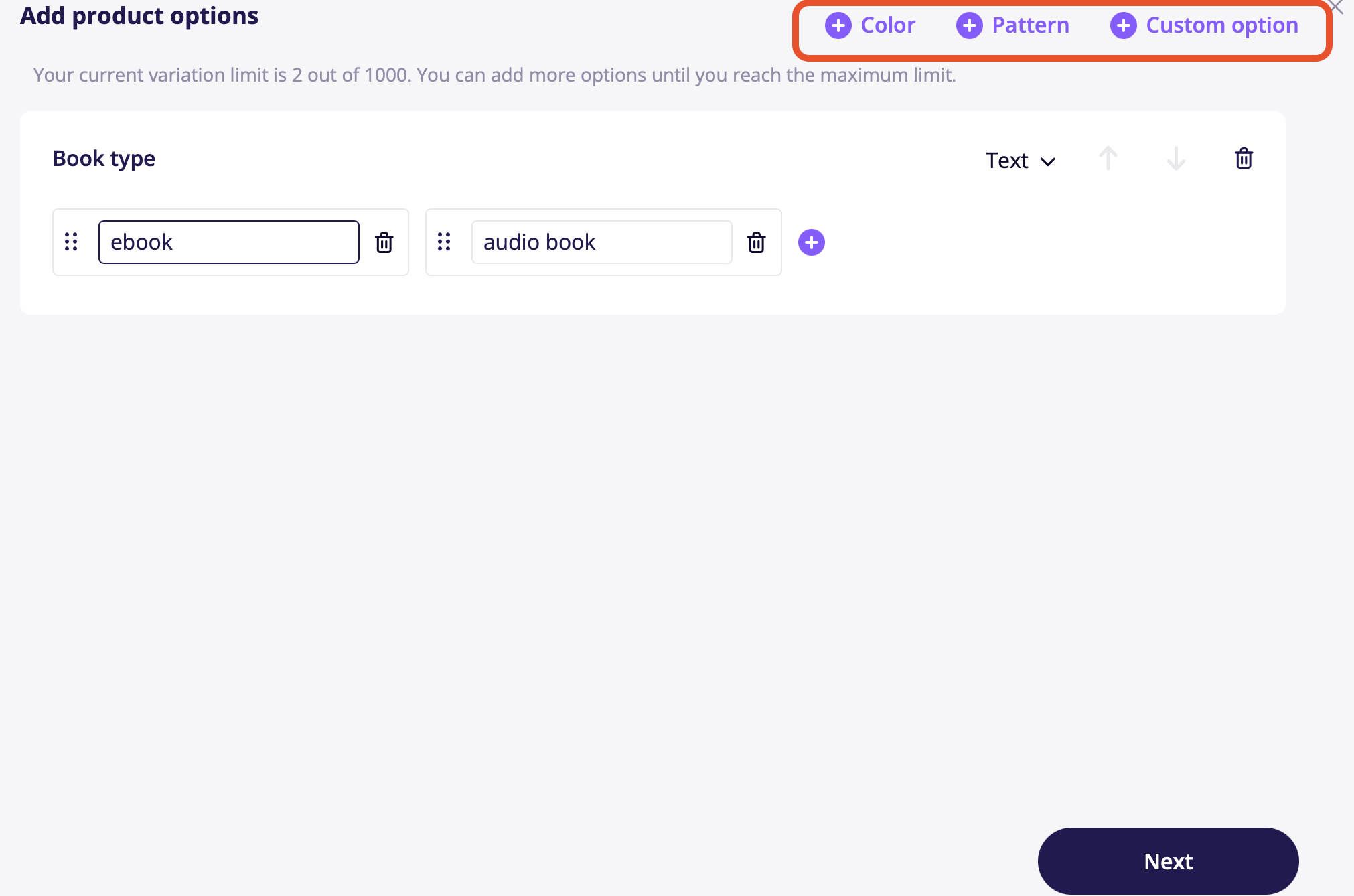
To begin creating product option selections—such as color, pattern, or custom ones like size, weight, or dimensions—follow these steps:
- Add an option by selecting the appropriate type (e.g., color, pattern, size).
- To rename an option, simply click on the field and enter your desired name.
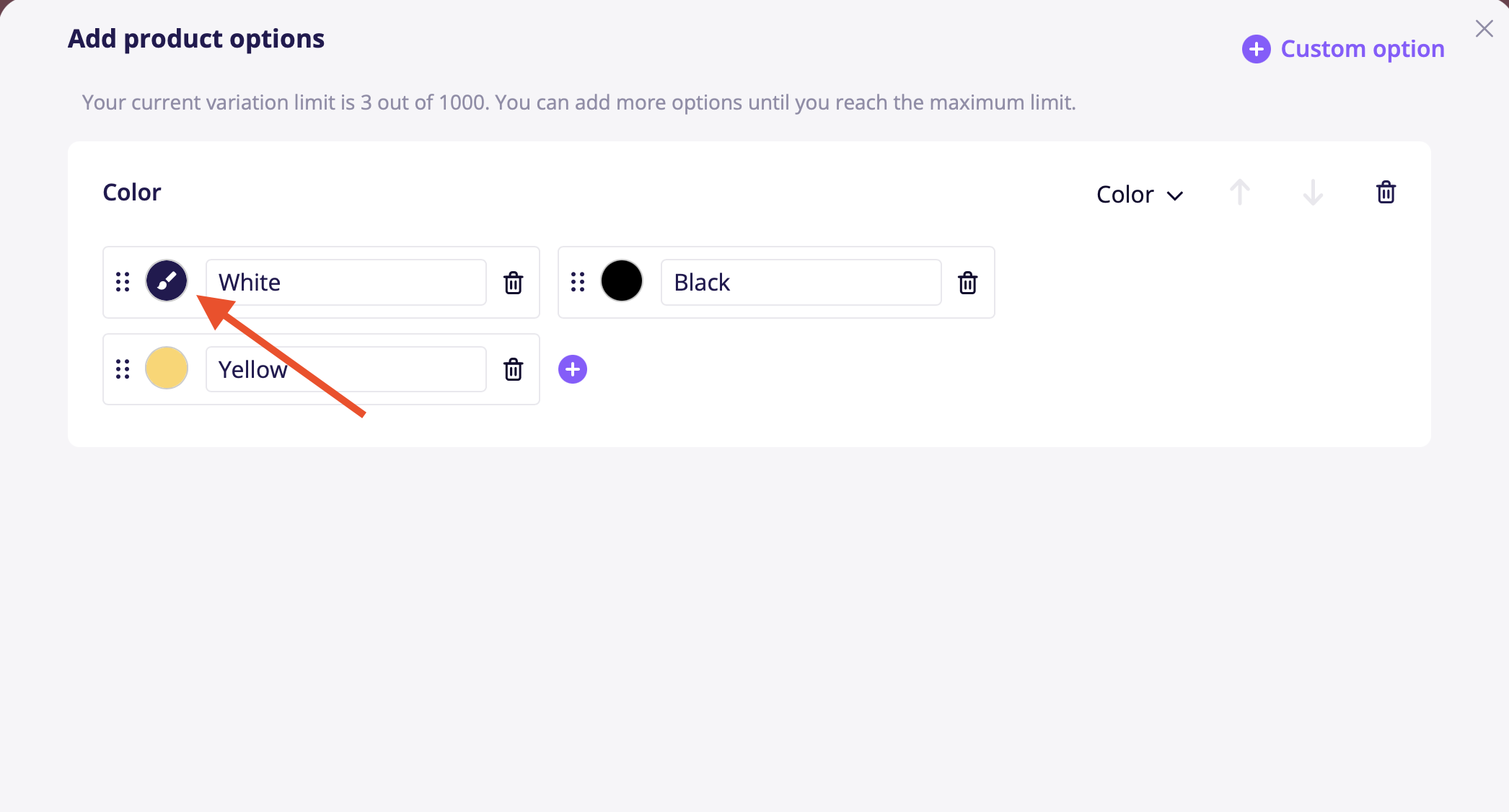
- For visual options like colors or patterns, you can add an image by hovering over the image icon and clicking on the paintbrush tool.
This allows you to fully customize each product option to suit your needs.
Once you're finished with the options, choose "Next Step" to continue
Now that all possible variations have been created, you can begin editing them individually or in bulk. For each variation, you have the option to set the price, sale price, stock status (in or out of stock), and SKU. This allows you to manage inventory and pricing for each specific combination.
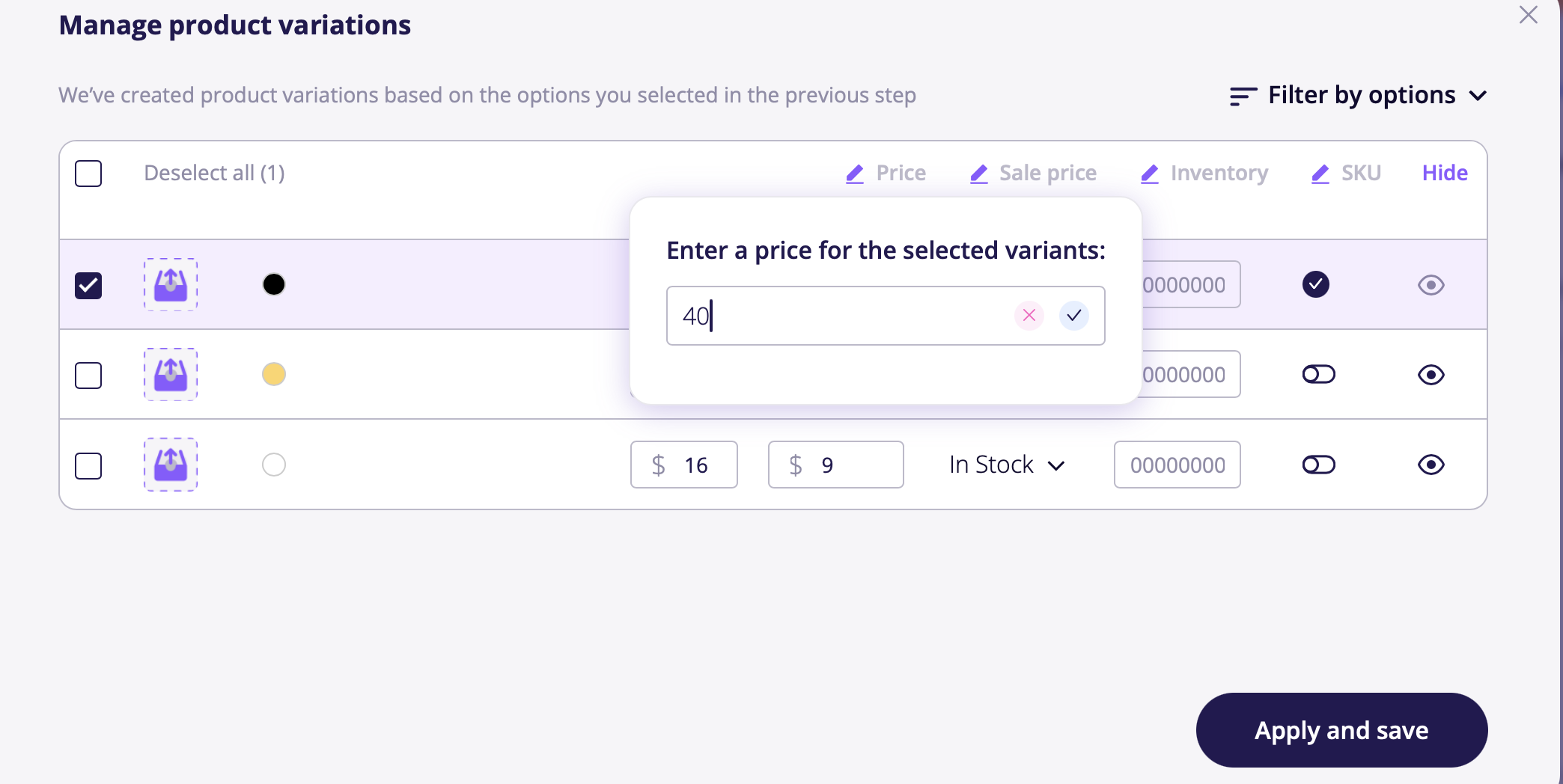
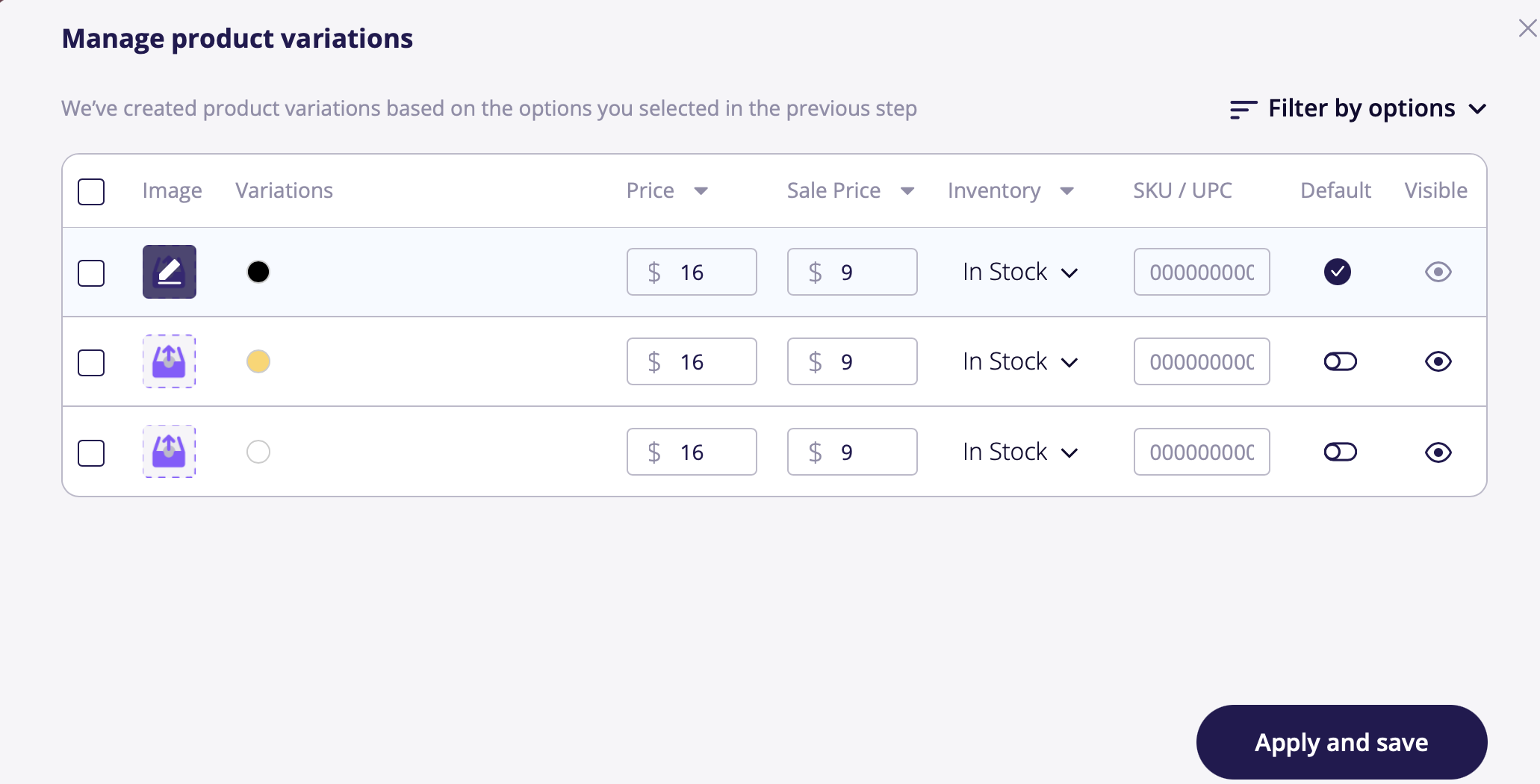
To set a specific product variation as the default on your product page, select the desired option and click the Default Product toggle. This ensures that when users view the product, this variation will be displayed first by default.
To hide a specific variation, simply click on the eye icon next to it. This will make the variation invisible to customers on your product page.
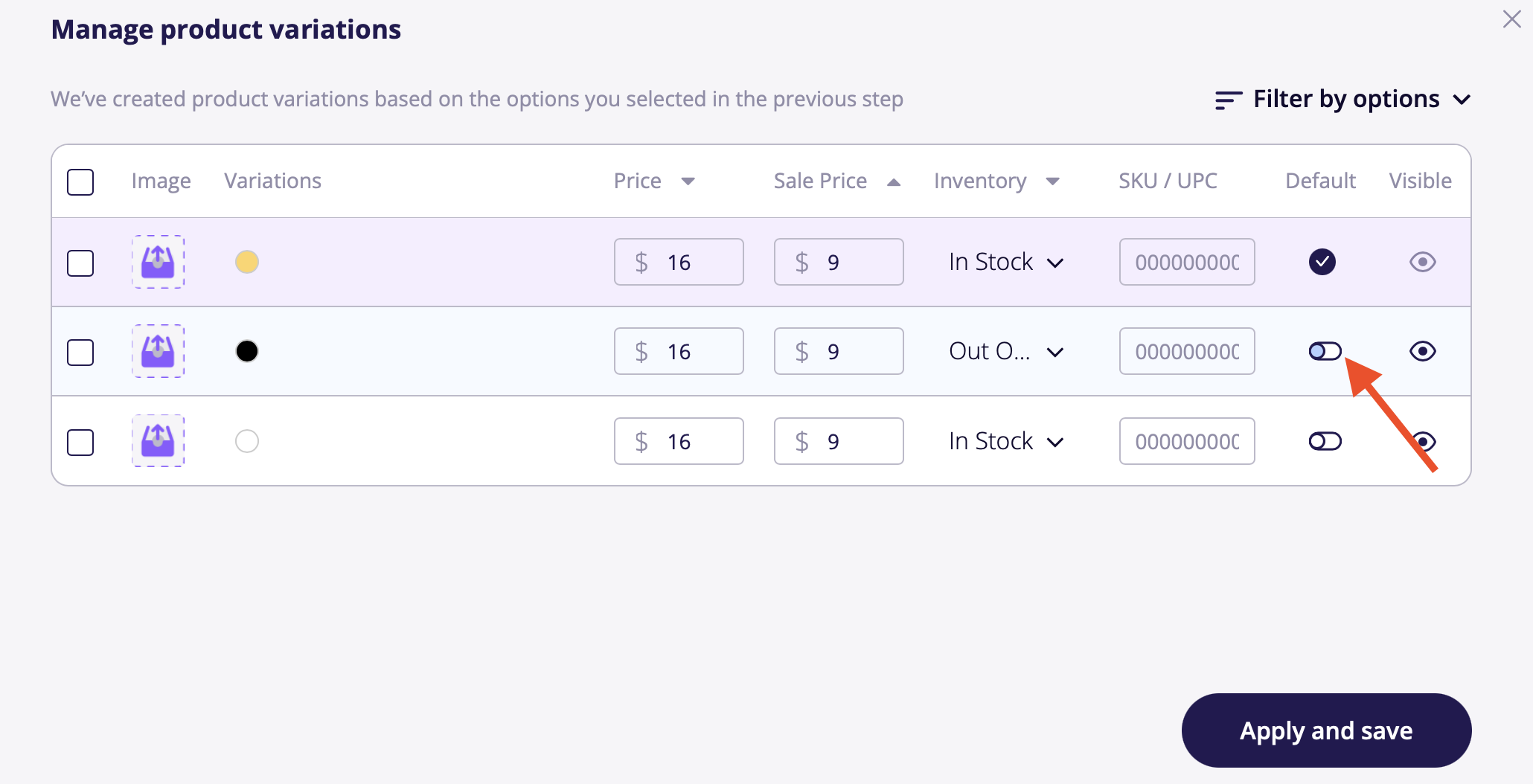
Once you’ve entered all the necessary information, click Apply and Save to make sure everything is updated on your product page.
See Also: