
How to add image/video as background?
To set a video or image as the background for your widget:
Go to the Widget Design section

To add an image background:
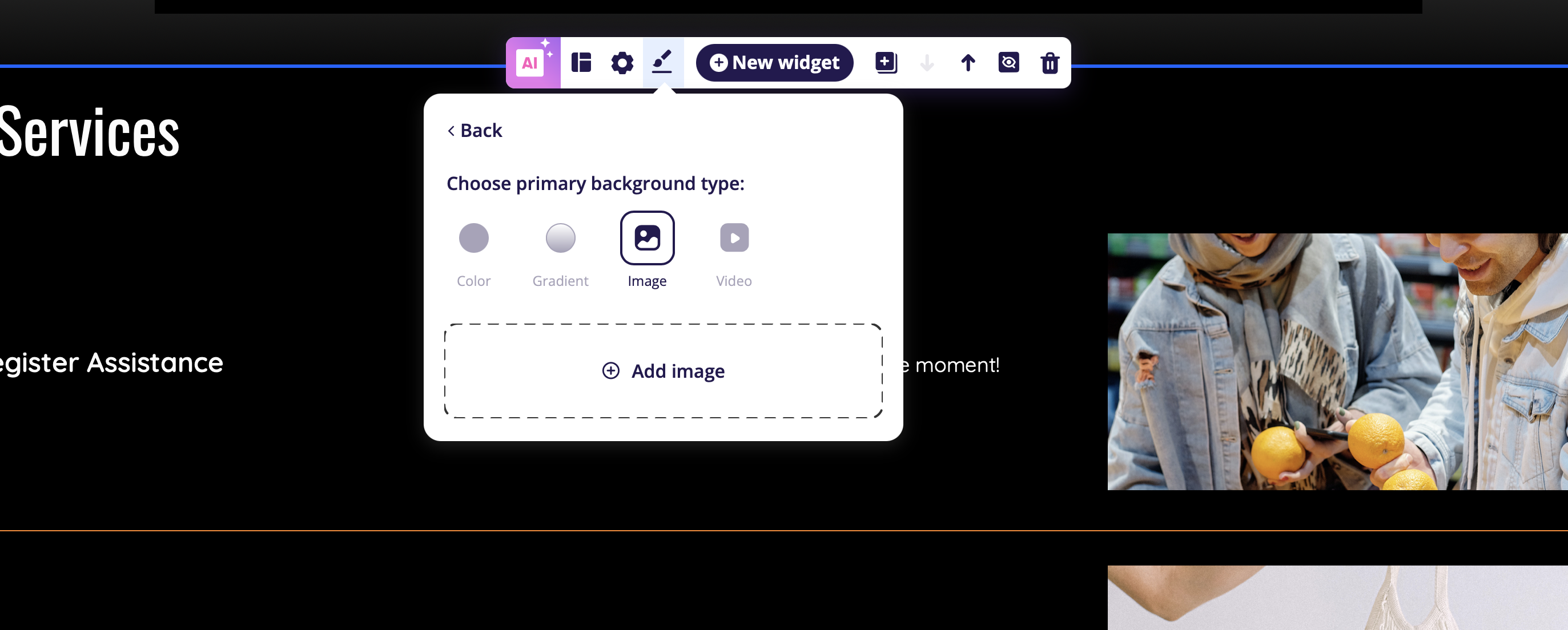
- Click on Background, then select the Image option.
- Upload a new image or choose one from your existing library.
- A color overlay is automatically applied to enhance text readability.
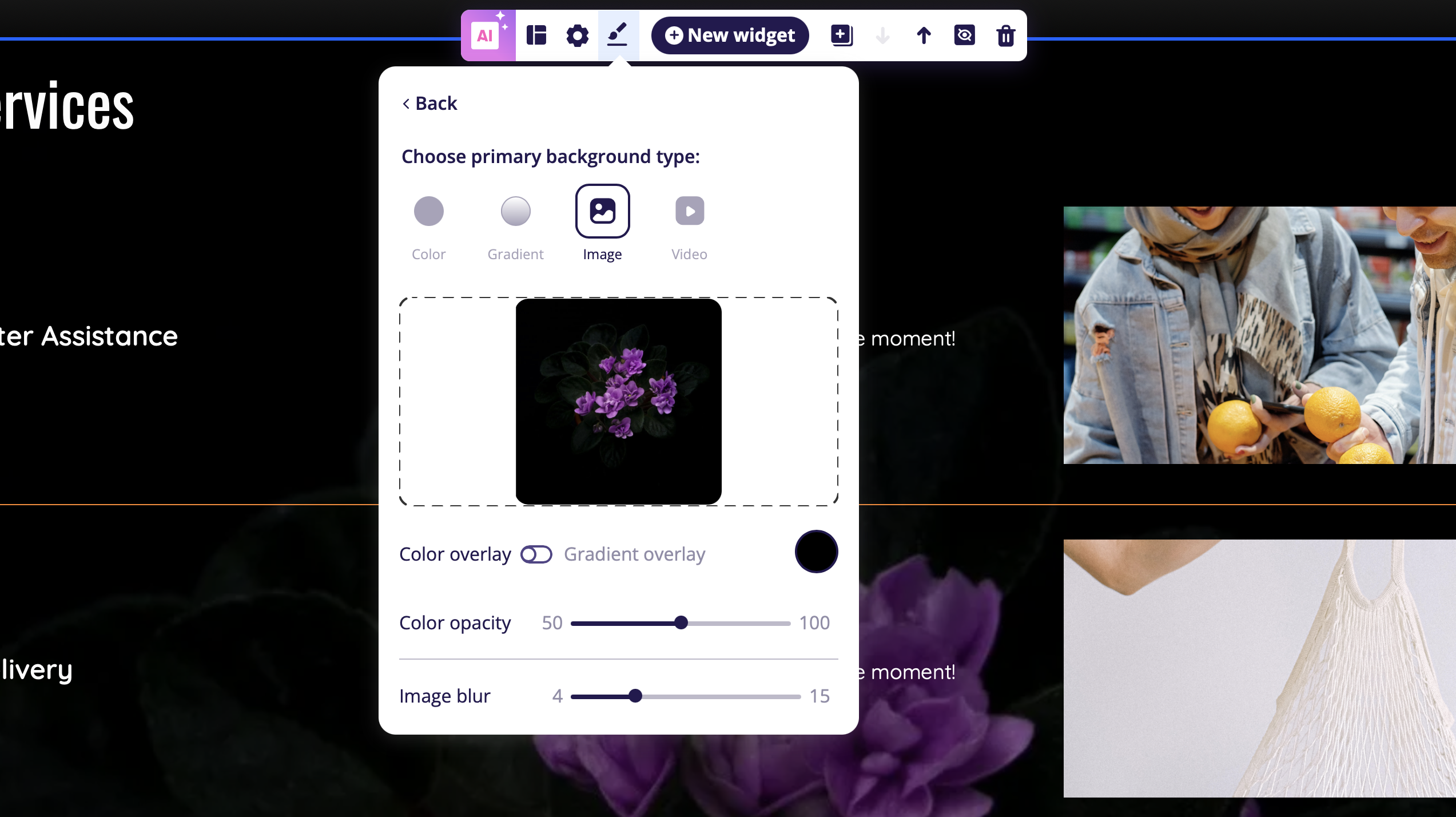
- To remove it, set the overlay opacity to 0.
- Alternatively, you can switch to the Gradient Overlay option to apply a gradient over your image instead.
To add a video background to your widget:
Navigate to the Widget Design section and select the Video background.
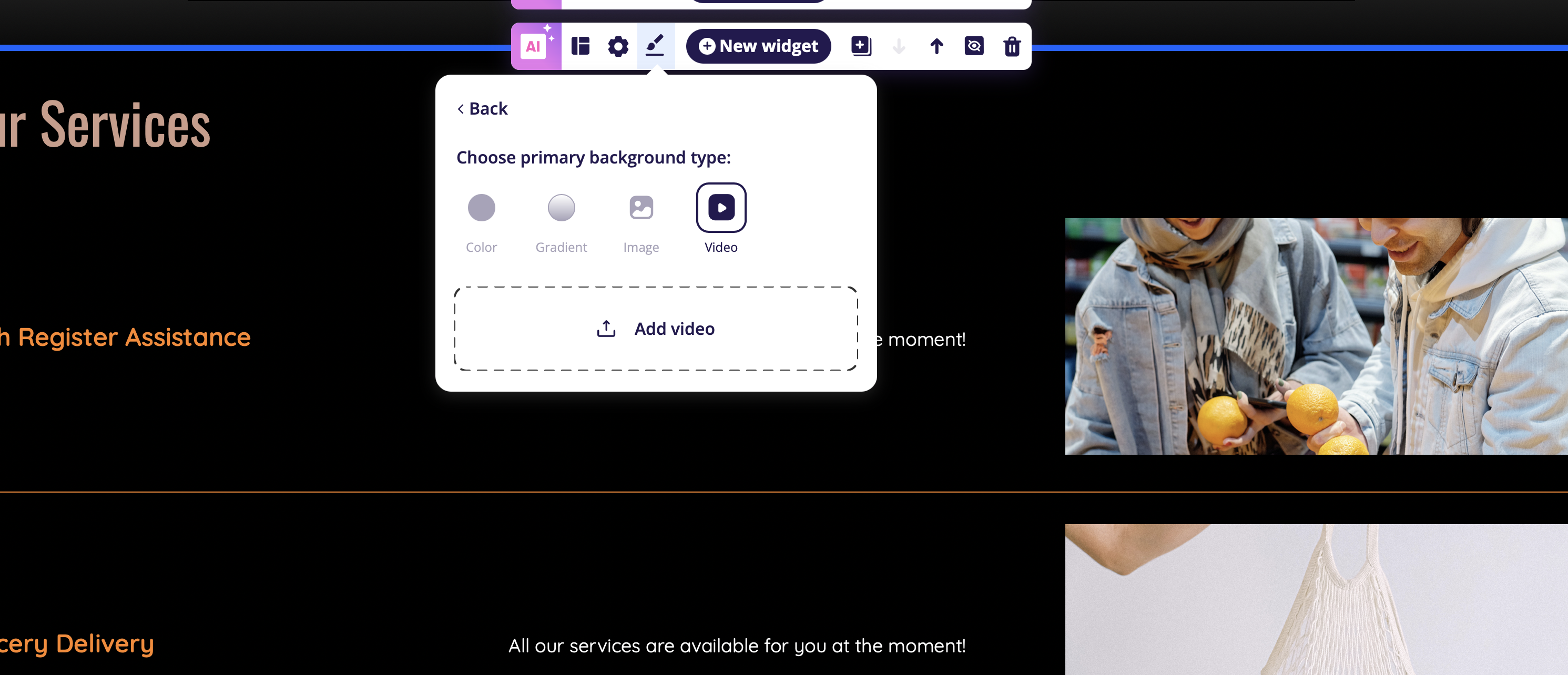
Upload your video file or select one from your library. Supported formats for your videos: MP4, MOV, WMV, AVI, FLV.
Optional settings:
- Enable the Play in Loop option if you want the video to replay continuously.
Overlay settings (same as with image backgrounds) :
- A color overlay is automatically applied to improve content readability. To remove it, set the overlay opacity to 0.
- Alternatively, use the Gradient Overlay option to apply a gradient over your video.