How to set up the booking app
Setting up your Booking App
Activating the Booking App
1. Go to the Apps section.
2. Find the Booking App.
3. Click on the "Activate*" button.
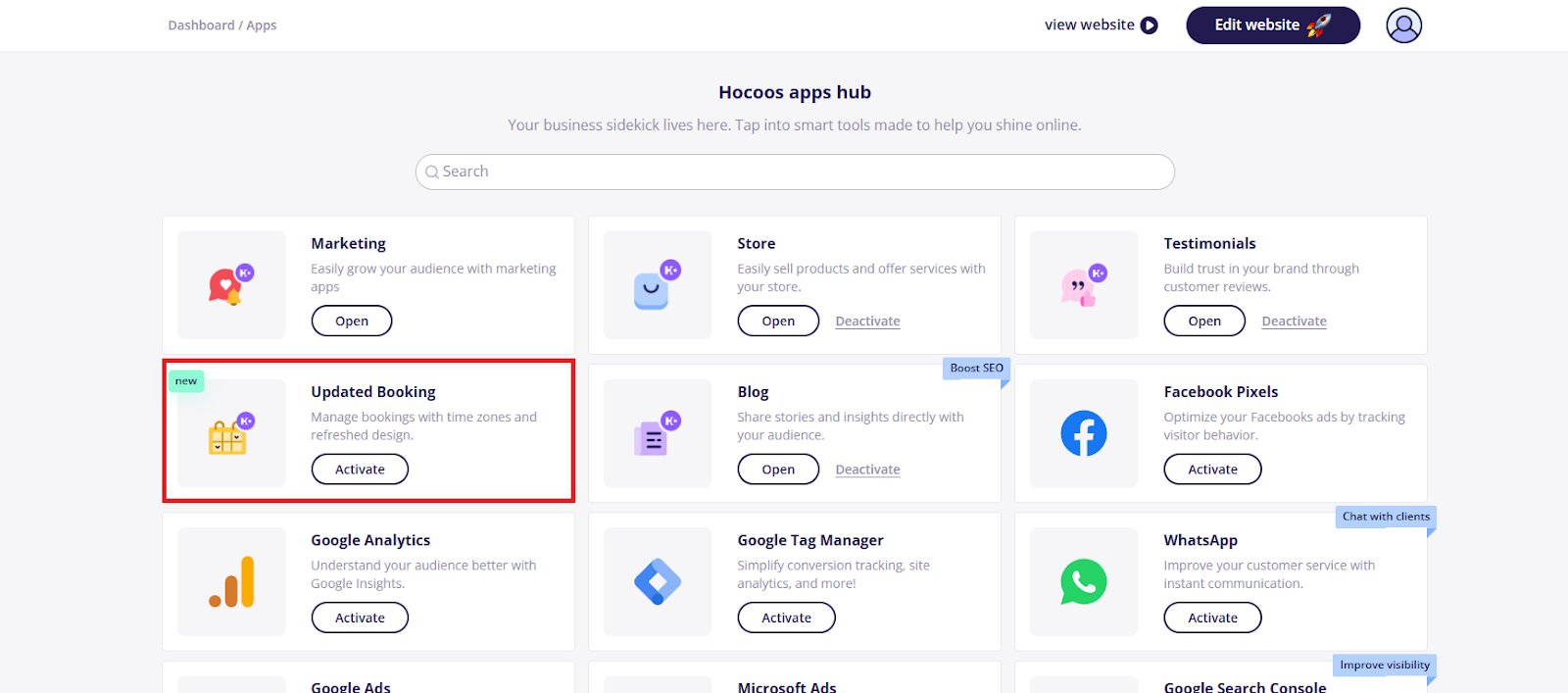
4.Once you activate the Booking App, we kindly ask you to follow the instructions below to ensure a correct setup:
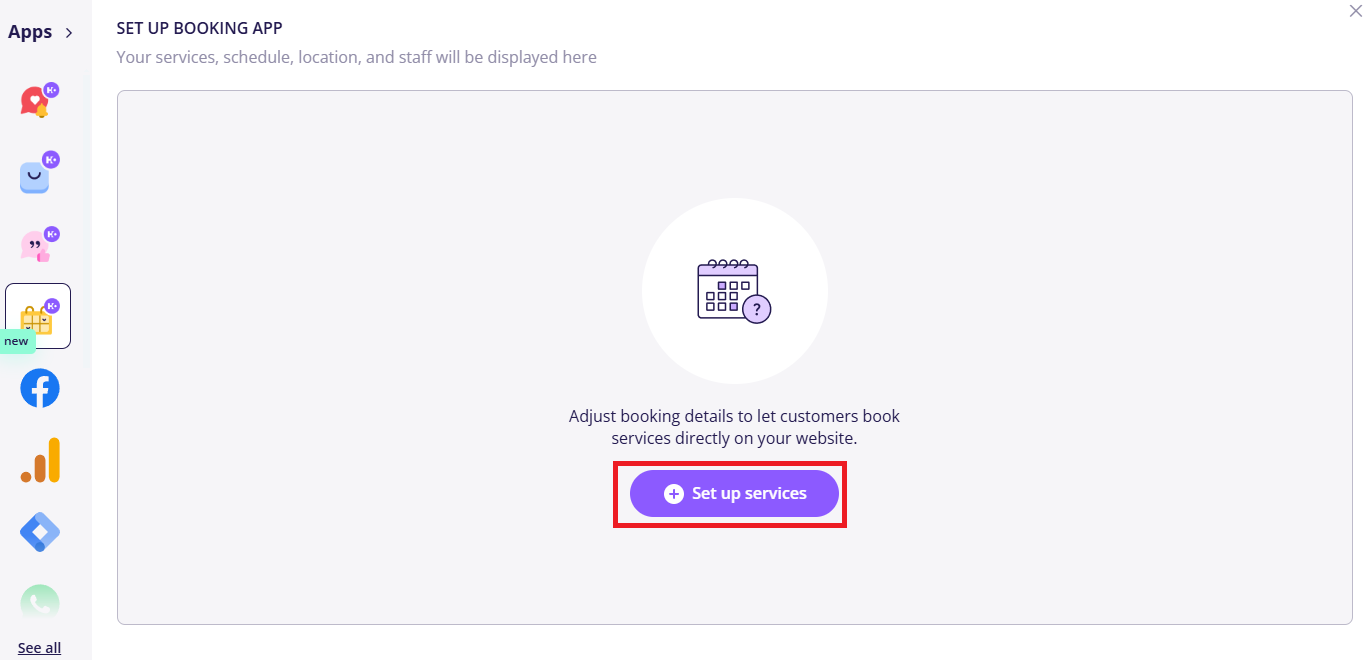
1. Click on Set up services section.
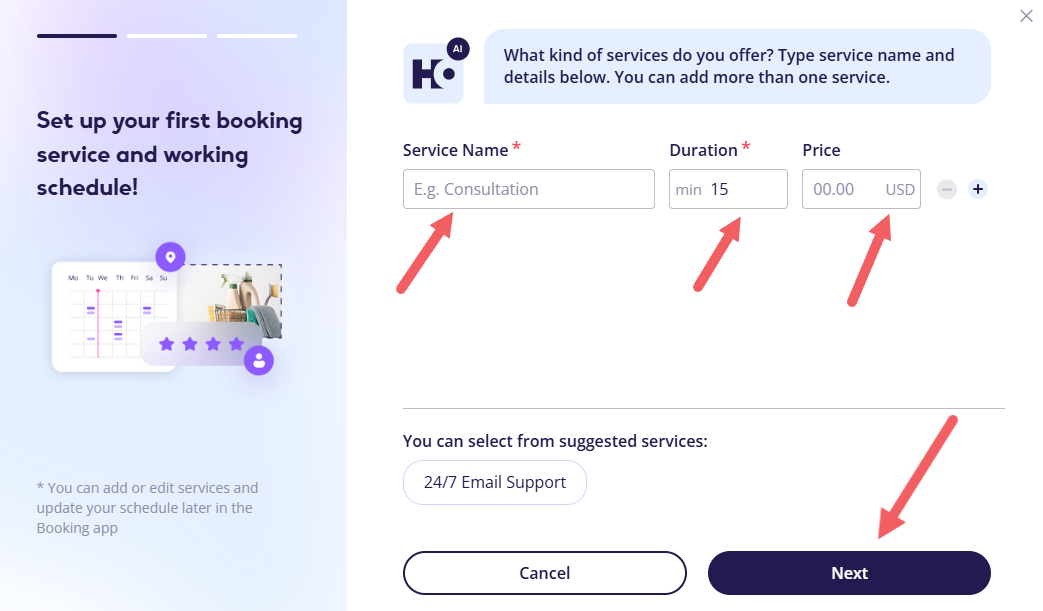
- Provide the service name, duration, and price. You can also add multiple services by pressing the plus (+) button, or remove a service by pressing the minus (−) button.
- Set up the opening hours. If you want to mark a day as off, press the toggle next to the corresponding date. To add break hours, press the plus (+) button.
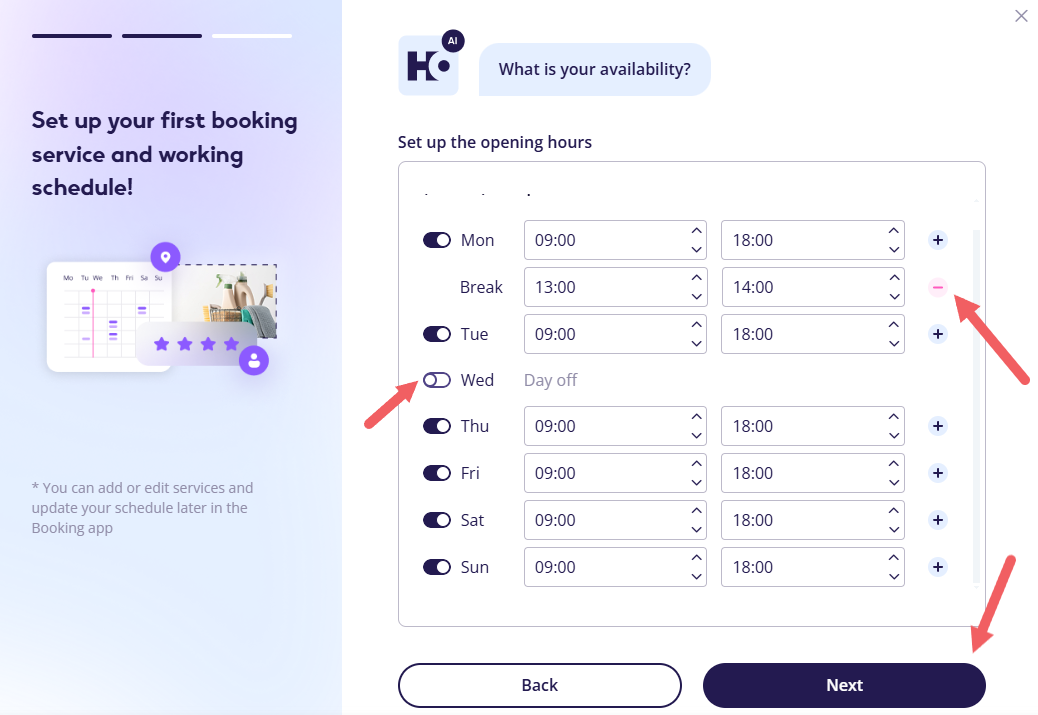
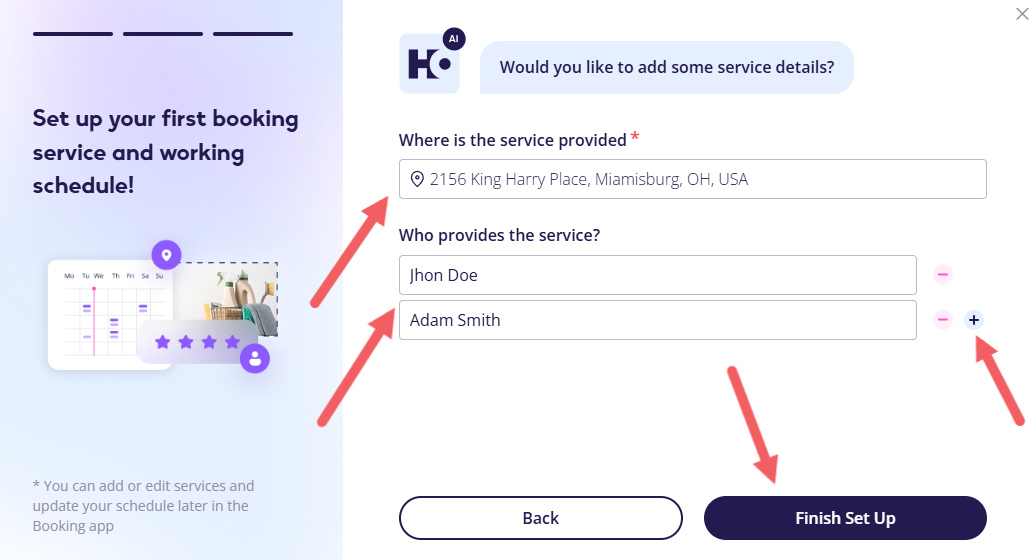
- Provide the service location address and specify who provides the services. You can add more than one person per service. Save your modifications by pressing “Finish Set Up.”
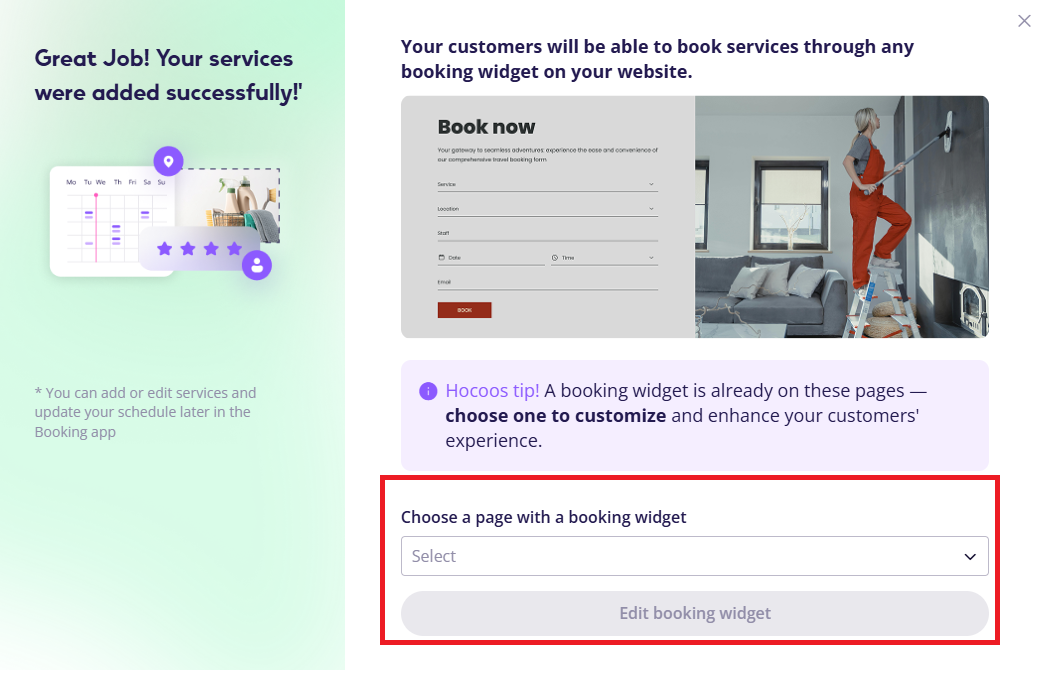
5 If you already have a “Booking” widget on the site, choose a page with a booking widget.
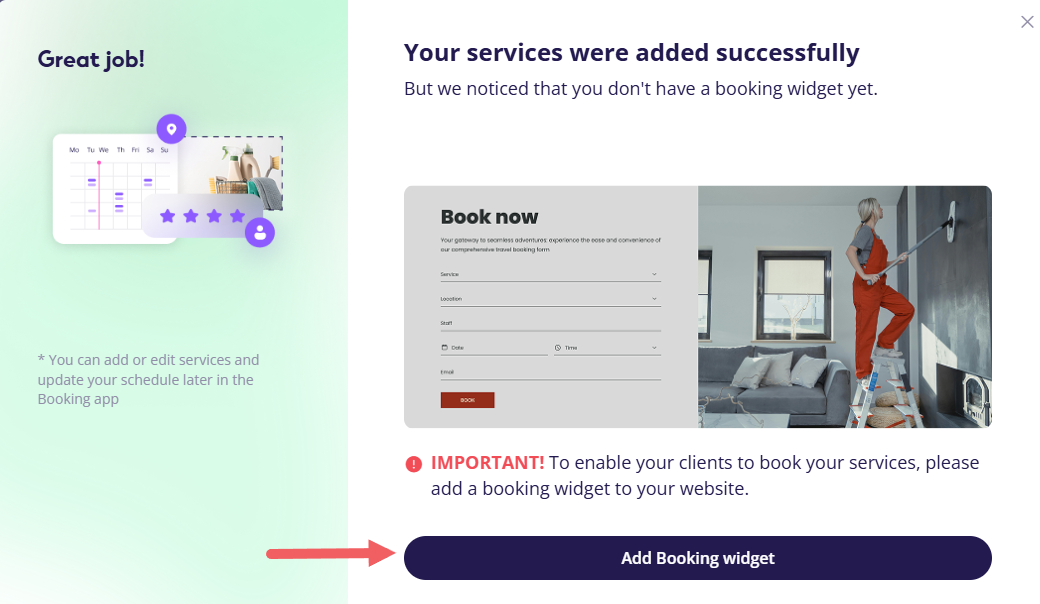
5.1 Alternatively you will see next window , by pressing “Add Booking widget”, you will be redirected to an editor more .
6 Create a new booking widget, by choosing one from the corresponding section.
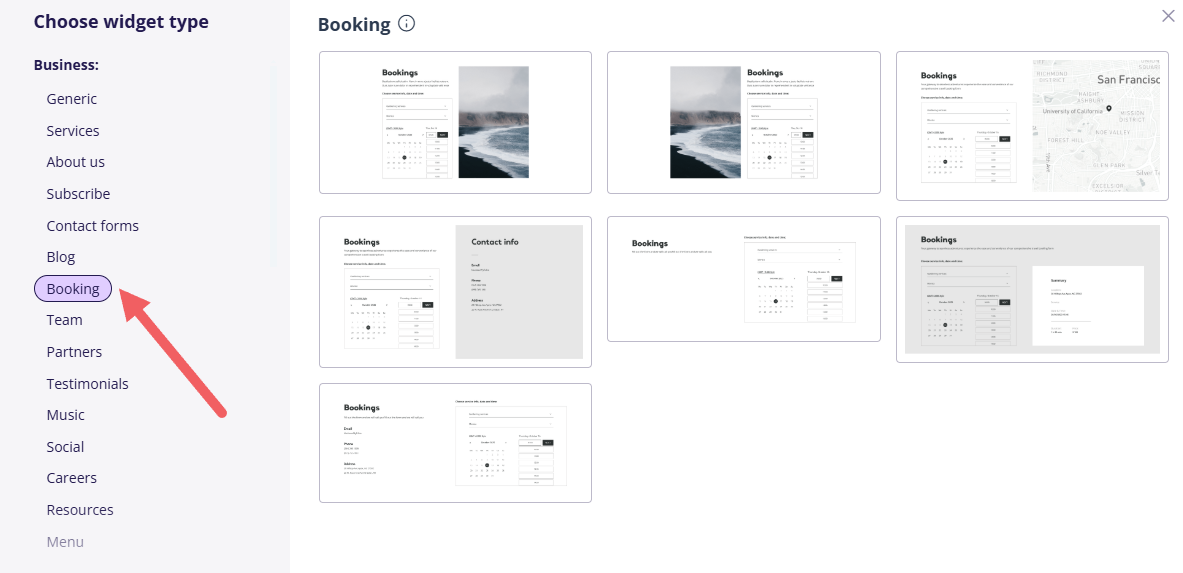
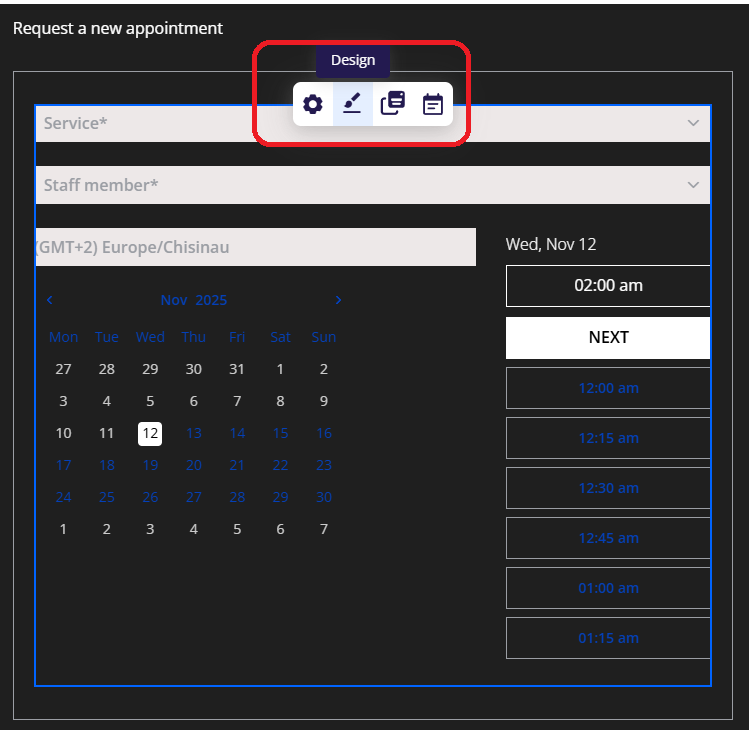
7 You can customize it by changing the design , setting up pop-ups. If you have a subscription you can also add extra fields. Customized fields will appear after pressing the “Next” button.
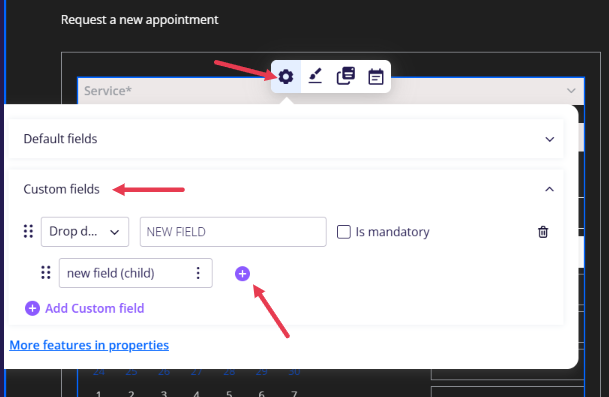
8 Extra fields can be added from the selector by pressing “Add Custom Field” in the “Settings” section.
Note.
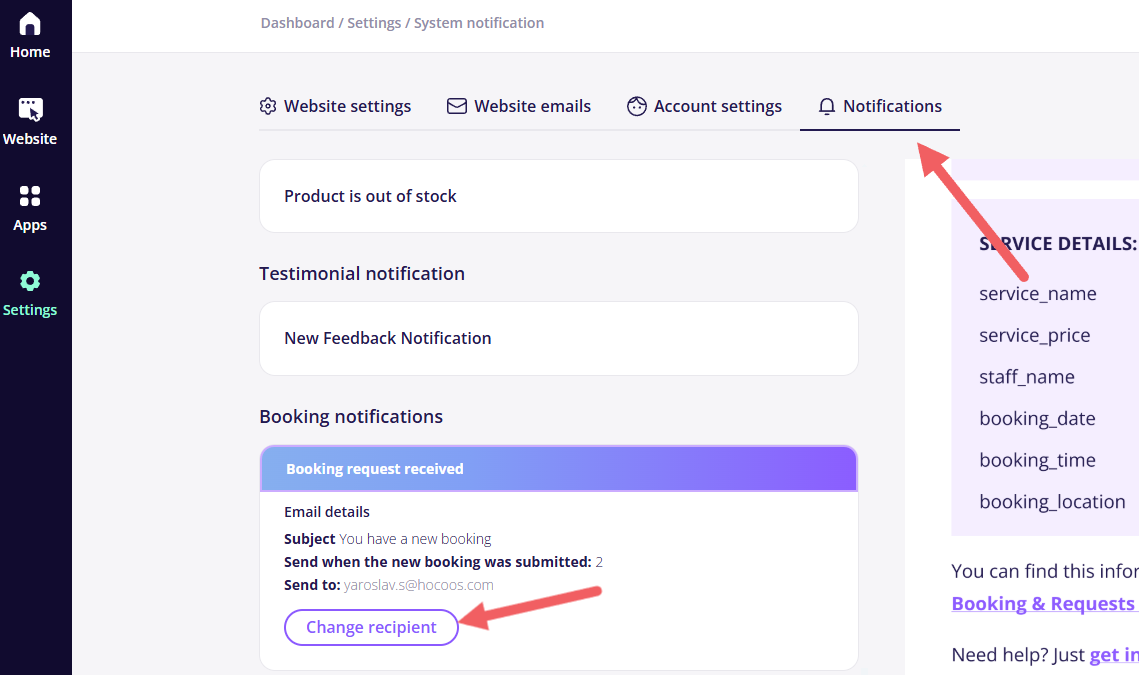
To change the email address for receiving contact form submissions, purchase confirmations, or booking notifications, go to the System Notifications section here: https://magic.hocoos.com/settings/system-notifications - notifications.