
How to Create a Mailing List in Hocoos?
What You’ll Achieve by the End of This Guide: By following this guide, you will be able to create and manage a mailing list, test your subscription form, and start building a subscriber list to engage with your customers.
Benefits of Having a Mailing List:
- Direct Communication: Reach your customers directly with promotions, news, and updates.
- Targeted Campaigns: Send personalised messages to specific groups based on their interest or behaviour.
- Build Customer Relationships: Stay top-of-mind with your audience through regular communication.
- Drive Sales: Use your list to announce product launches, special offers, and events to increase engagement and revenue.
What is a Mailing List?
A mailing list is a collection of email addresses used to send messages to a group of people. Mailing lists are commonly used in marketing campaigns to share important information like product launches, sales, or event invitations. This allows you to promote your products or services to a targeted audience.
Steps to Create Your First Mailing List
1. Go to the Apps page.
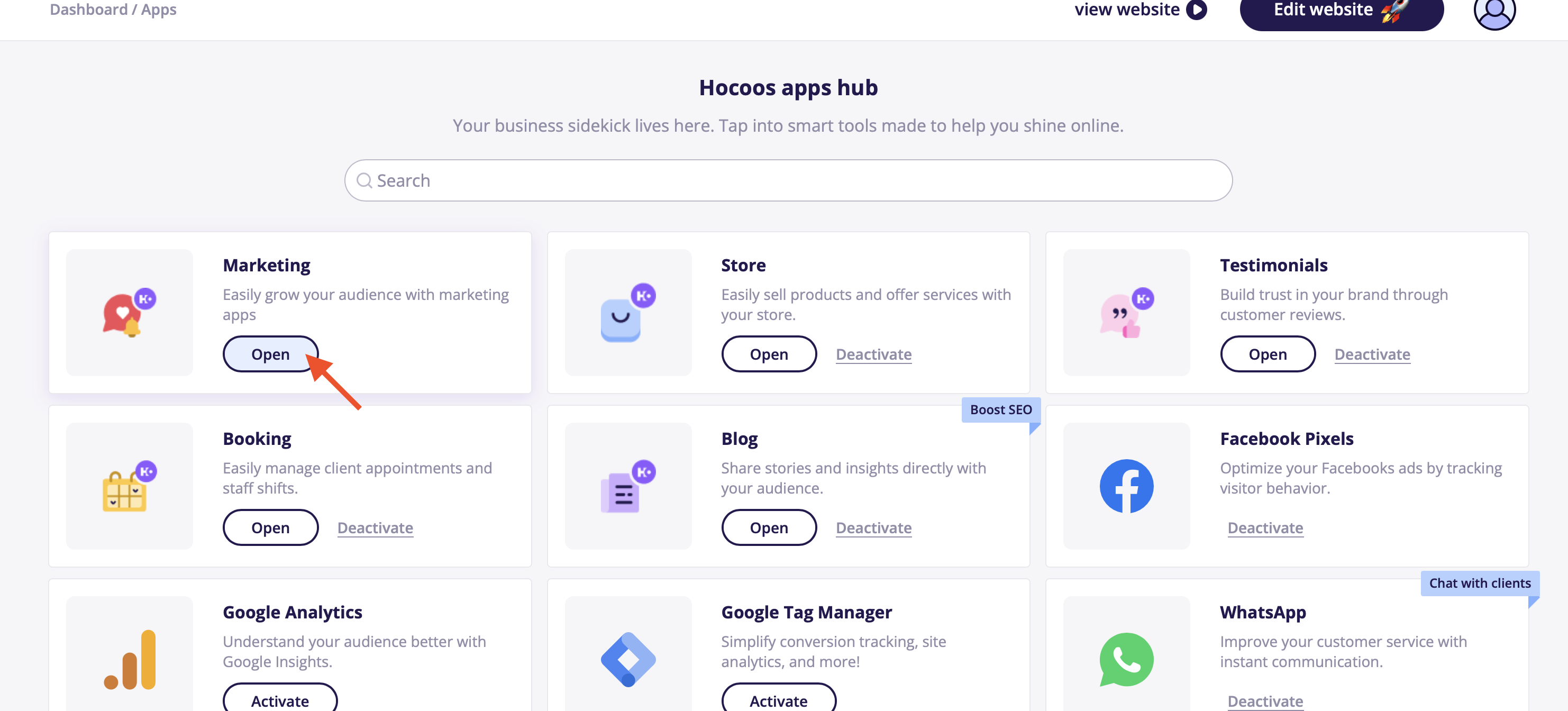
2. Open Marketing app.
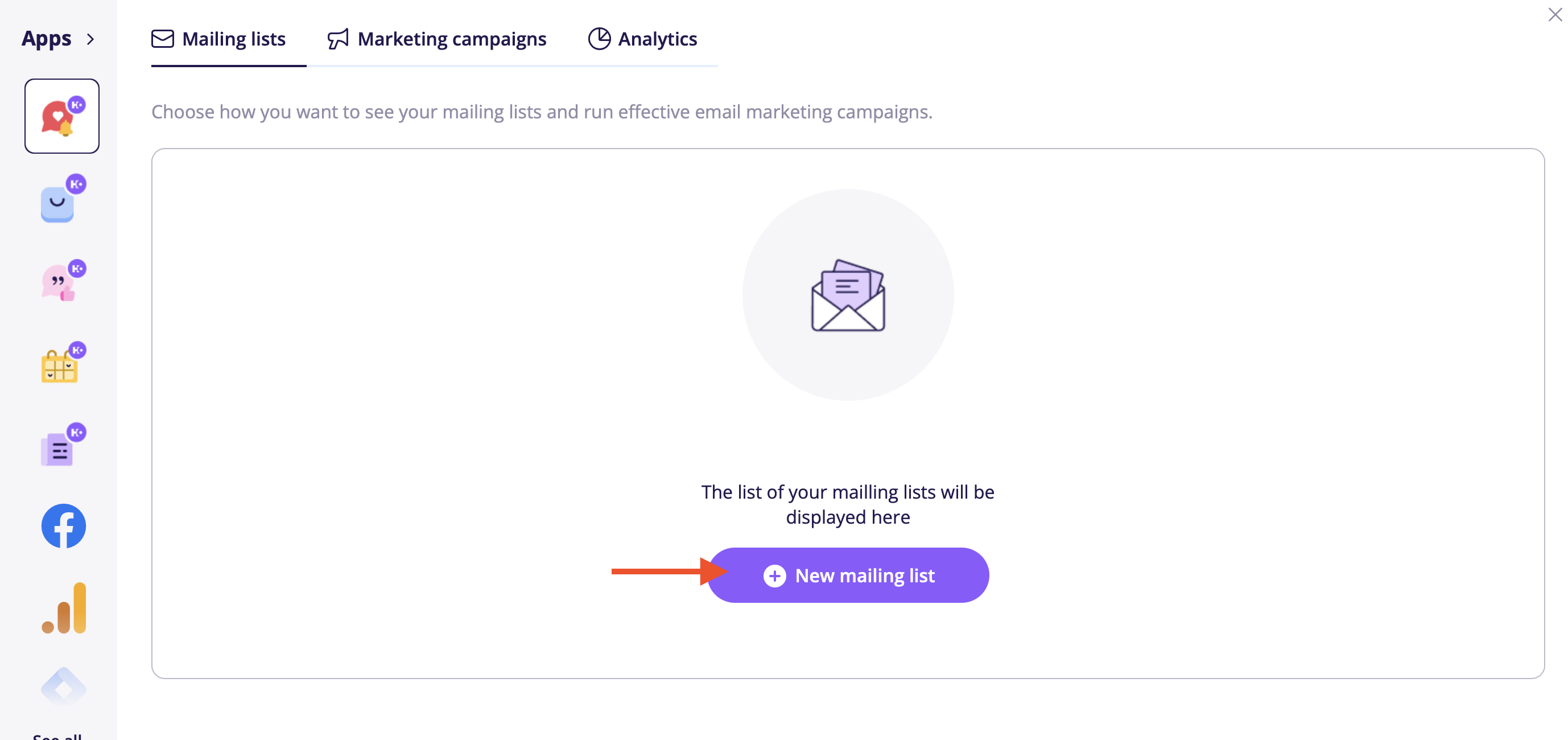
3. In the Mailing list tab, click on "New mailing list" to get started.
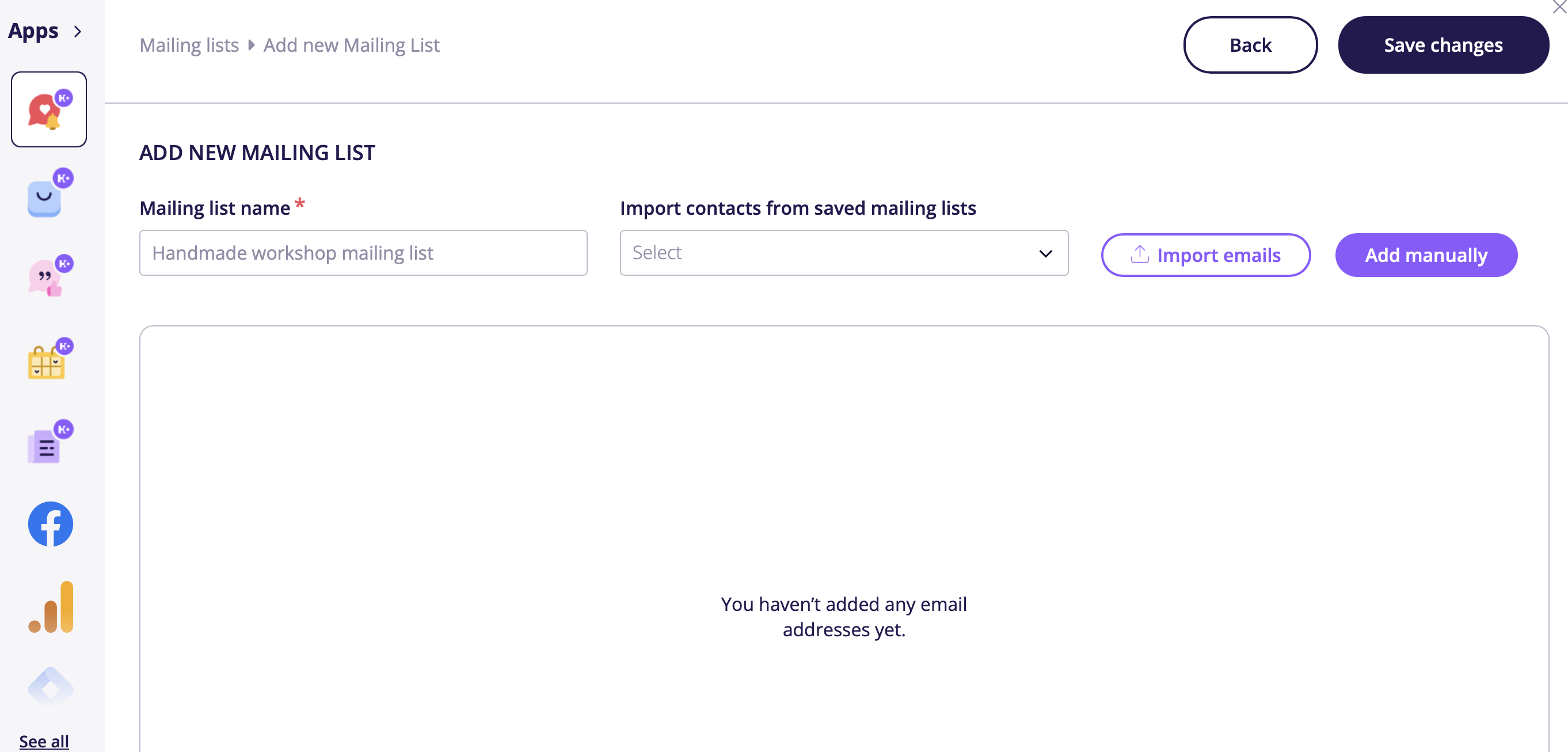
Create a new list and add your email addresses. You have the option to add them manually or import emails. If you are importing emails make sure the file is in XLS format. If you’re unsure what it should look like, download a sample file by clicking the Download Sample here button.
4. Managing Your Mailing Lists:
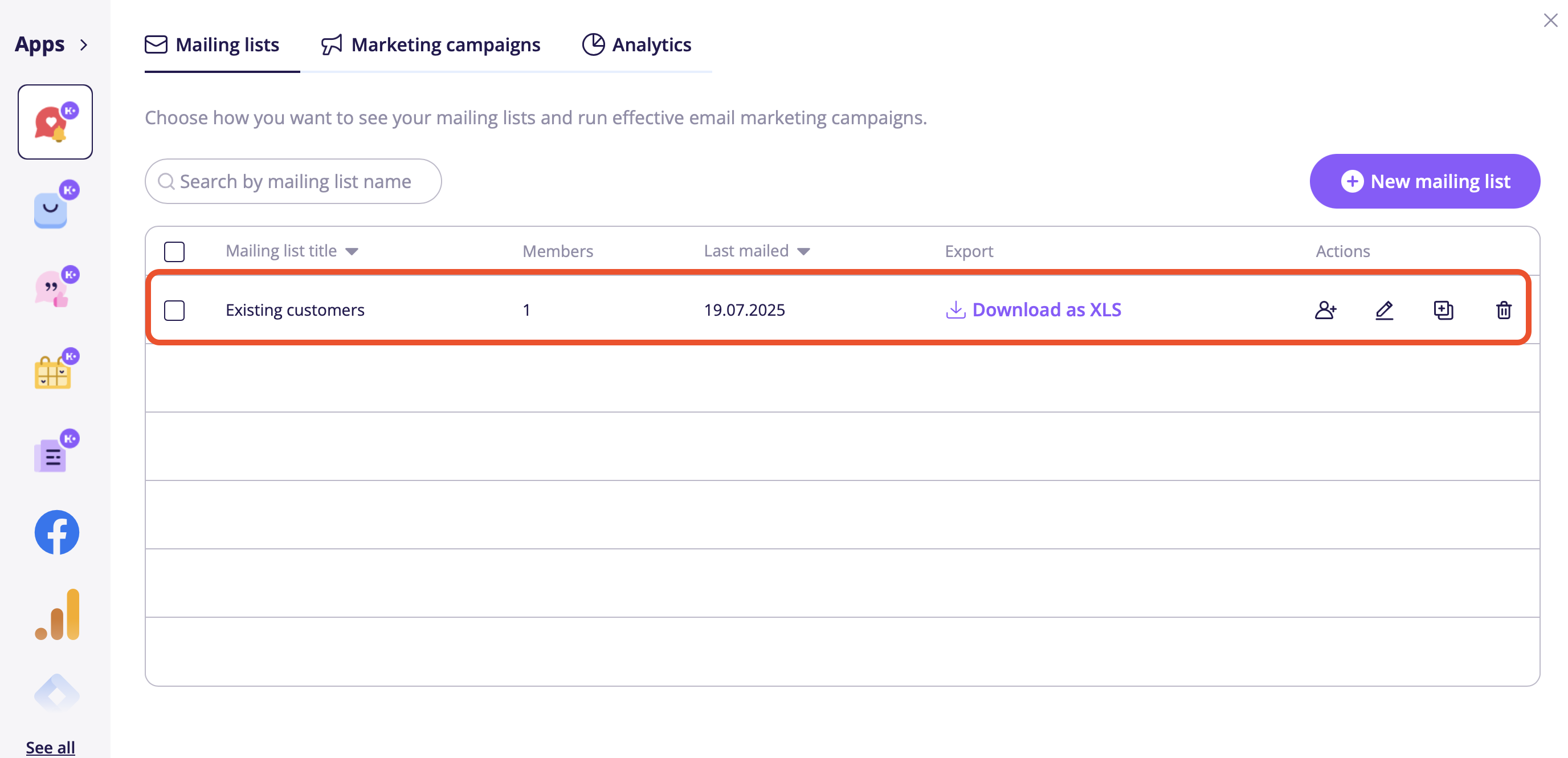
- In this section, you’ll see a list of all existing mailing lists. The All Contacts list is automatically generated and collects all contact info from your website’s Subscribe forms.
- You’ll notice 1 member already in the All Contacts list (your test email from the subscription form).
5. View Email Addresses:
- Click the Pencil button next to the mailing list to see more details.
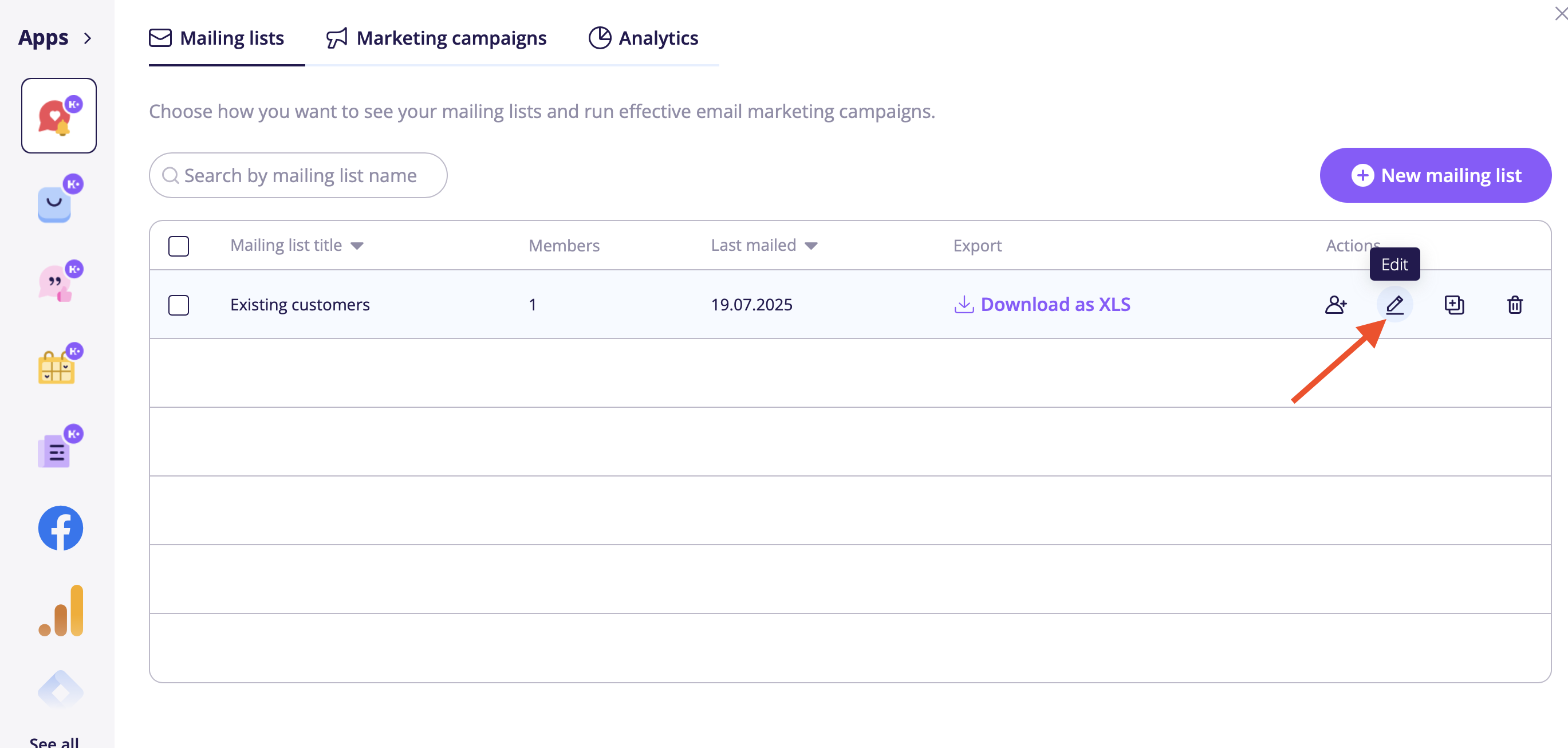
- On the Mailing List Details page, you will see all email addresses collected via your website (at this point, likely only your own test email).
You’re All Set! Now you’ve successfully created your mailing list. You can use this list to engage with your customers and grow your business.
See also:
- How to edit the contact information in the website's menu?
- How to set up Testimonials on your website?
Troubleshooting
If you run into issues while creating or managing your mailing list, here are some common problems and solutions:
1. My Mailing List File Isn’t Importing Correctly
- Possible Cause: The file might not be in the correct format.
- Solution: Ensure that your mailing list file is in XLS format. Download the sample file provided to see the correct format and adjust your file accordingly.
2. Email Addresses Are Not Being Collected After Users Subscribe
- Possible Cause: There may be an issue with the connection between the subscription form and your mailing list.
- Solution: Double-check the settings in the Mailing lists section to ensure that the All Contacts list is enabled and linked to the form. If the issue continues, try re-testing the Subscription form by subscribing with a different email address. The other way around it is clearing your browser cache.
3. Manually Added Emails Are Not Showing Up in The Mailing List
- Possible Cause: The email addresses might not have been saved properly.
- Solution: Make sure to click the Save button after adding emails manually. If the problem persists, try refreshing the page and re-adding the emails.