
How to Change the Email Address for System Notifications?
What You’ll Achieve by the End of This Guide: By following this guide, you will learn how to change the email address in some of the system notifications and the billing email address.
Benefits of Changing the Email Address for System Notifications:
- Task delegation: Have store notifications sent directly to your store manager by changing the email address.
- Cooperation: Update your billing email, so your partner stays informed about payment due dates.
- Teamwork: Assigning various workers to different emails can enhance your workflow.
Why do I Change the Email Address for System Notifications?
System notifications serve as a valuable communication tool, helping you stay informed and manage your account the best way possible. Hocoos boosts your company's efficiency with system notifications settings. Streamline information sharing by assigning specific areas to responsible individuals.
Steps to Change the Email Address for System Notifications
- Access Your Website:
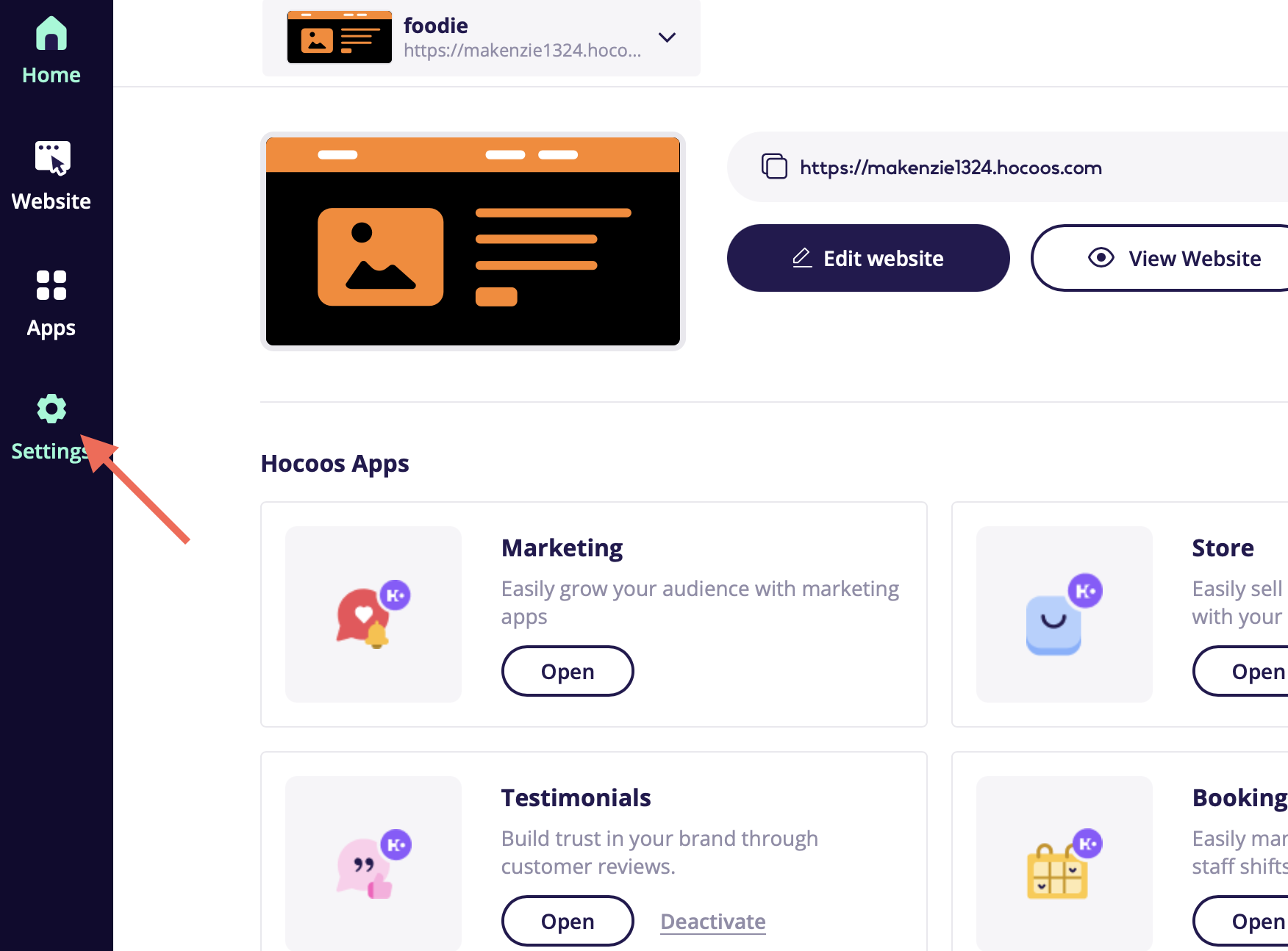
- In the Hocoos Dashboard, go to the Settings section.
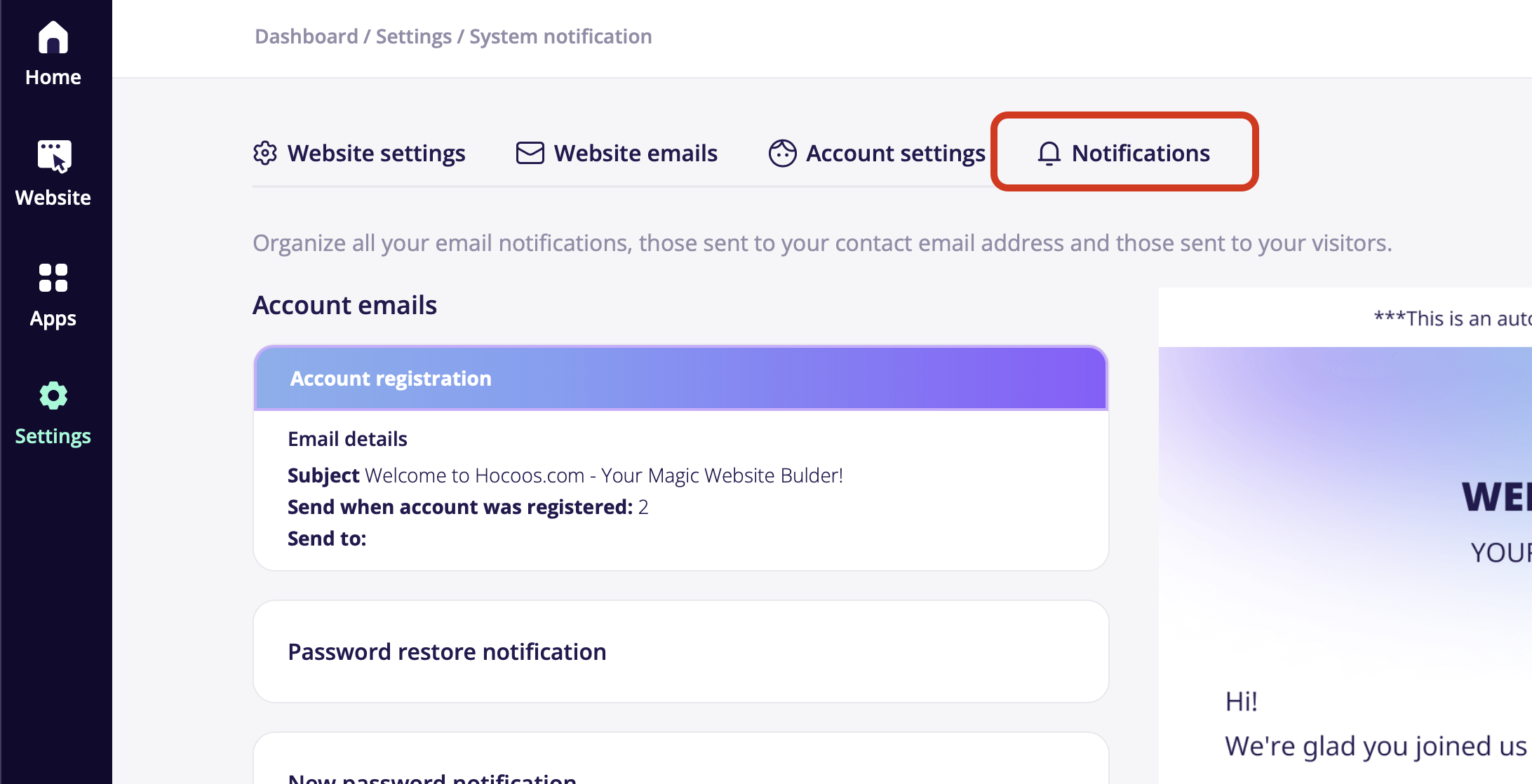
- Go to the Notifications tab:
- Find the Notifications section in the menu and click on it.
- Change the Email Address for Notifications:
- Locate the General emails block and click on the Contact request received subsection.
Tap on the Change recipient button to reassign the email address, where messages will be sent to.
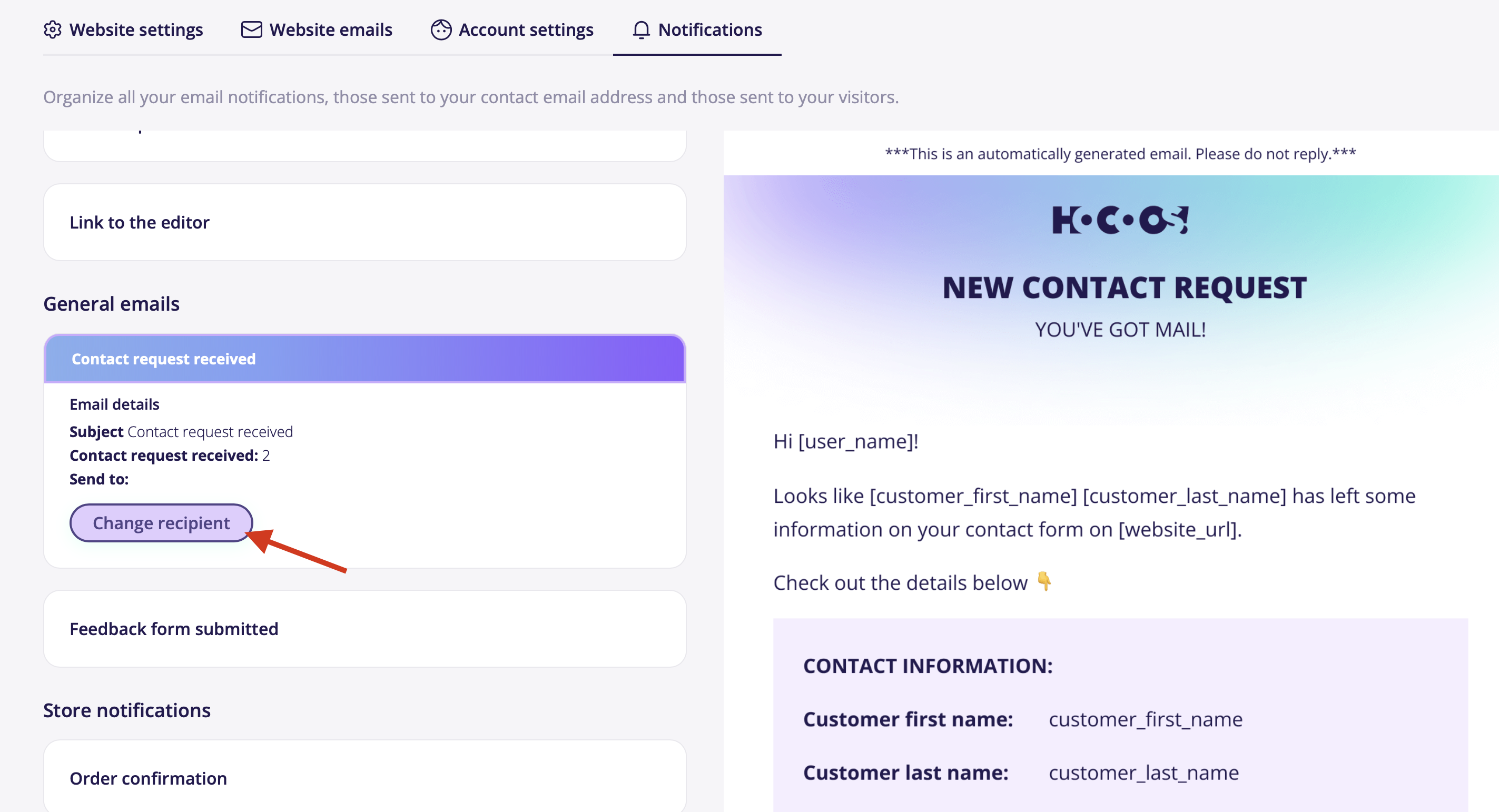
For example: I run bed & breakfast and would like my receptionist to be the point of contact for guests. I'll set up my receptionist's email as the primary recipient for contact requests.
Please enter a new email address to be used for receiving Contact Request Received messages.
You can add up to 10 email addresses for your notifications.
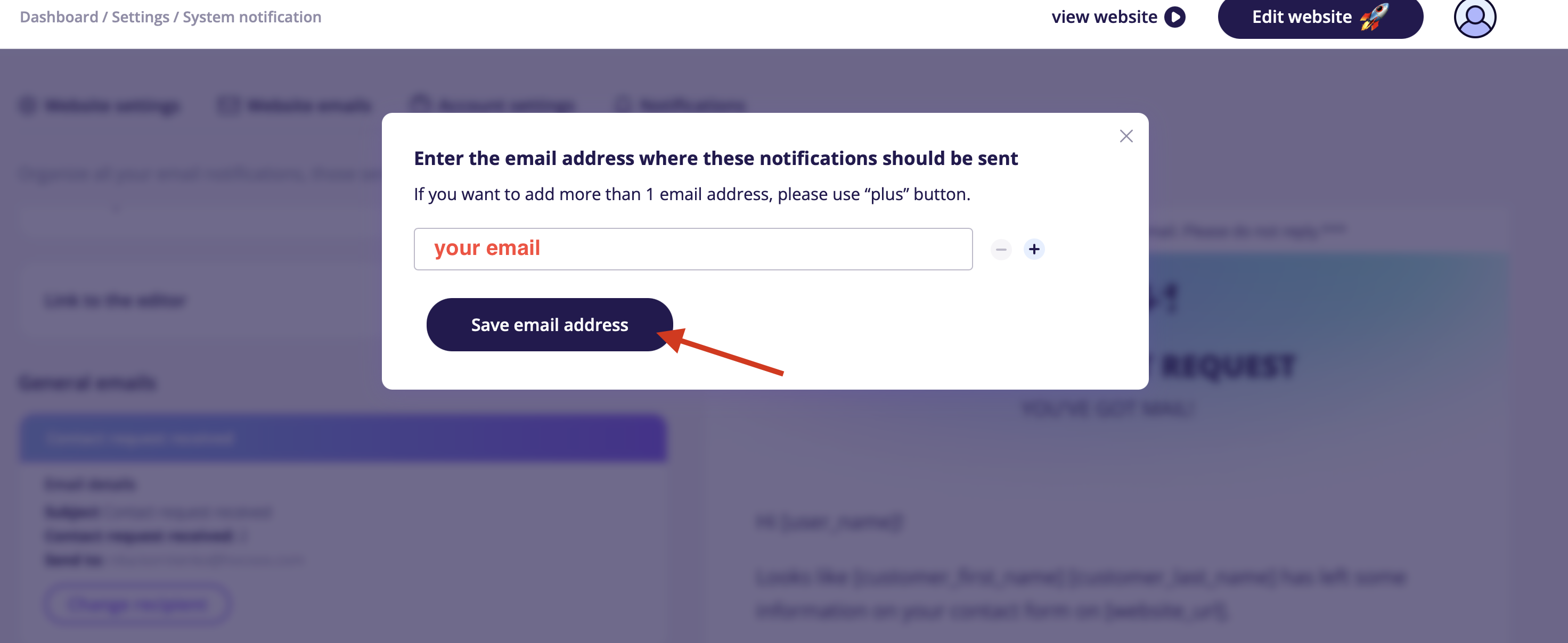
To change the email address in other blocks follow the same steps.
You're Good to Go! You have successfully learned how to change your email address in system notifications, and now can effectively manage all your information flows.
See Also:
- How Can I Edit the Contact Information in the Website's menu?
- How to Set a Contact Form on My Website?
Troubleshooting
If you run into issues while changing email in the system notifications, here are some common problems and solutions:
1. The Email Address in System Notifications is not Changing
- Possible Cause: The email address might not have been saved properly.
- Solution: Try to enter the email address one more time and click the Save button.
