
How to Set up a Custom Email Sender for System Notifications?
By default, Hocoos sends system emails from magic@hocoos.com. But if you're on a Premium plan and have at least one custom domain connected from another provider or purchased through Hocoos, you can personalize your sender email and sender name.
This article explains how the feature works, what types of sender emails are supported, and what to expect based on your domain setup.
How to Change the Sender Email and the Sender Name?
This feature lets you update:
-
Sender Email: The "From" email address clients see (e.g., info@mydomain.com)
-
Sender Name: The name that appears next to your email (e.g., "My Brand Name")
Go to the Settings tab in your Dashboard, then select Website Emails.
Click the Edit button to update the Sender Email and Sender Name.
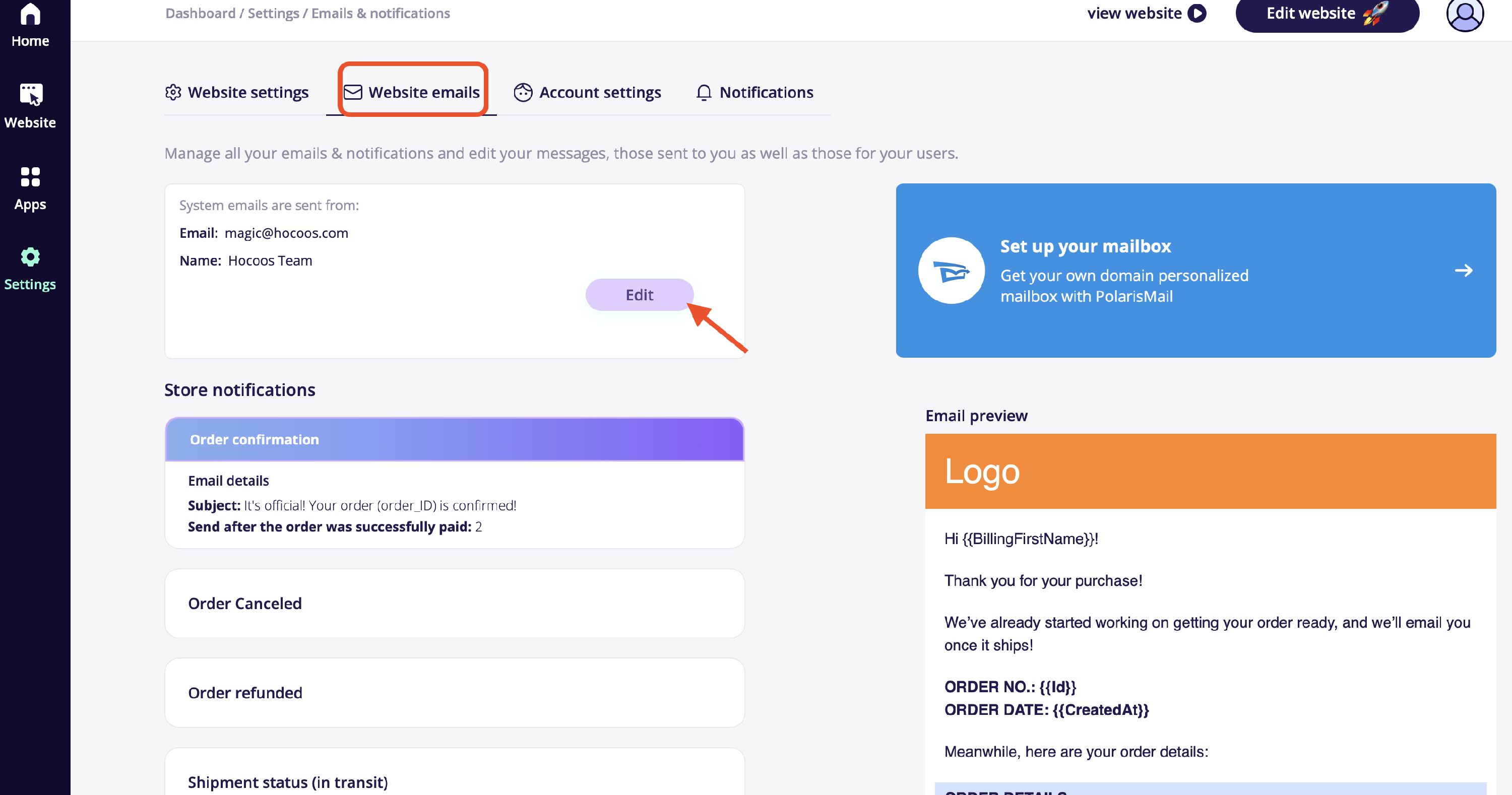
Tip: Only Premium users can change the sender email. Free plan users will need to upgrade to unlock this feature.
Supported Email Types
You can choose between two types of custom emails:
-
Polaris Mailbox (Bought through Hocoos. Fully supported.)
- Custom Email Address (Any valid email address using your custom domain. Requires DNS verification.)
How Domain Type Affects Verification
|
Domain Type |
DNS Verification |
|
Purchased through Hocoos |
Done automatically |
|
Connected from another provider |
Manual DNS setup required |
Tip: It can take up to 30 minutes for DNS records to propagate.
What Happens When You Update Sender Email?
-
Domain purchased through Hocoos → DNS records are added automatically, and the status becomes active in up to 30 minutes.
-
Domain connected from another provider → You’ll get DNS records to add manually in your domain provider account. After verifying, the status becomes active in up to 30 minutes.
Tip for the domain connected from another provider: Once DNS records are added and verified, do not modify or delete them in your domain provider account. Even if the status shows as "active" in Hocoos, changing those records can stop your emails from being delivered.
Using a Polaris Mailbox
-
Domain purchased through Hocoos → DNS setup is automatic. Status becomes active in up to 30 minutes.
- Domain connected from another provider → Manual DNS setup and verification required. Status becomes active in up to 30 minutes after verification.
If you're unsure about the DNS setup or your sender email status, don’t worry - we’re here to help!
See Also:
Troubleshooting
- What If DNS Records are Changed or Removed?
|
Situation |
Outcome |
|
DNS removed from the domain purchased through Hocoos |
Status becomes failed, emails revert to default (magic@hocoos.com), and a warning email is sent |
|
DNS removed from the domain connected from another provider |
The status does not change, but emails will not be delivered |
|
DNS records are fixed |
Status updates to active and custom-sending resumes |
- Managing Sender Email&Name; What if I...
- Switch back to the default magic@hocoos.com email? → DNS records of the domain will be cleared (no matter if the domain was purchased through Hocoos or another provider).
- Change only the Sender name? → Emails reflect the new name instantly.
- Change between emails on the same domain? → Status remains active.
- Change to a new Domain?→ You’ll need to follow the instructions in the Hocoos platform, depending on whether the new domain is purchased (automatic setup) or connected from another domain provider (manual DNS setup).
- Switch between Polaris Mailboxes? → Status remains active, emails are sent from the new address.